

Install Astra from your WordPress dashboard or upload the Astra ZIP file, then activate and customize.
I have helped many site owners and developers set up themes and build fast sites. This guide covers how to add Astra theme in WordPress in clear, practical steps. You will get dashboard and manual methods, setup tips, plugin recommendations, customization advice, and troubleshooting from real-world experience. Read on to confidently add Astra and shape a site that performs and converts.
Why choose Astra for your WordPress site
Astra is a lightweight, fast theme built for flexibility. It works with major page builders and supports WooCommerce. Choosing Astra reduces page load time and simplifies design control. Many developers use Astra to speed up builds and lower maintenance.

How to add Astra theme in WordPress: Step-by-step (Dashboard method)
Follow these steps to add Astra using the WordPress admin area:
- Log in to your WordPress dashboard.
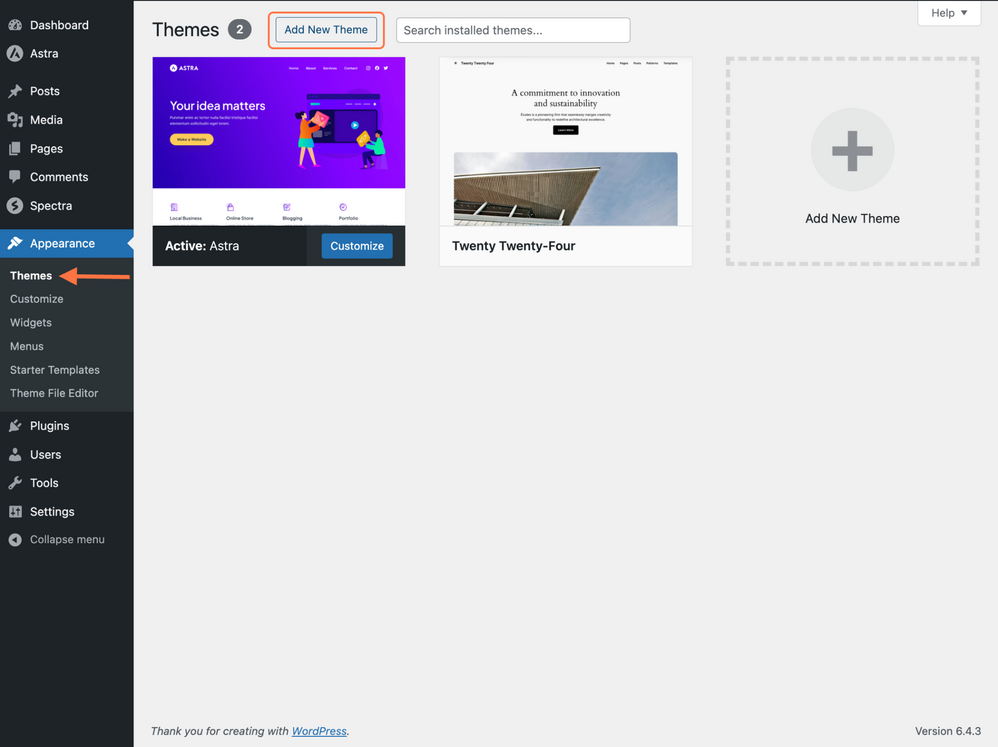
- Go to Appearance > Themes.
- Click Add New.
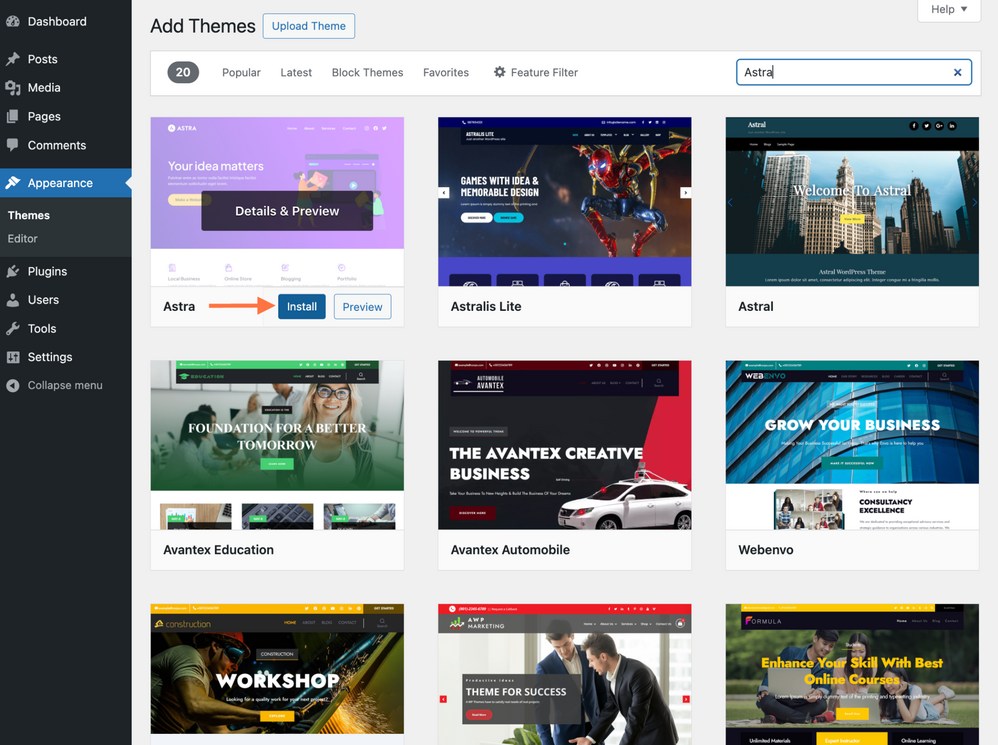
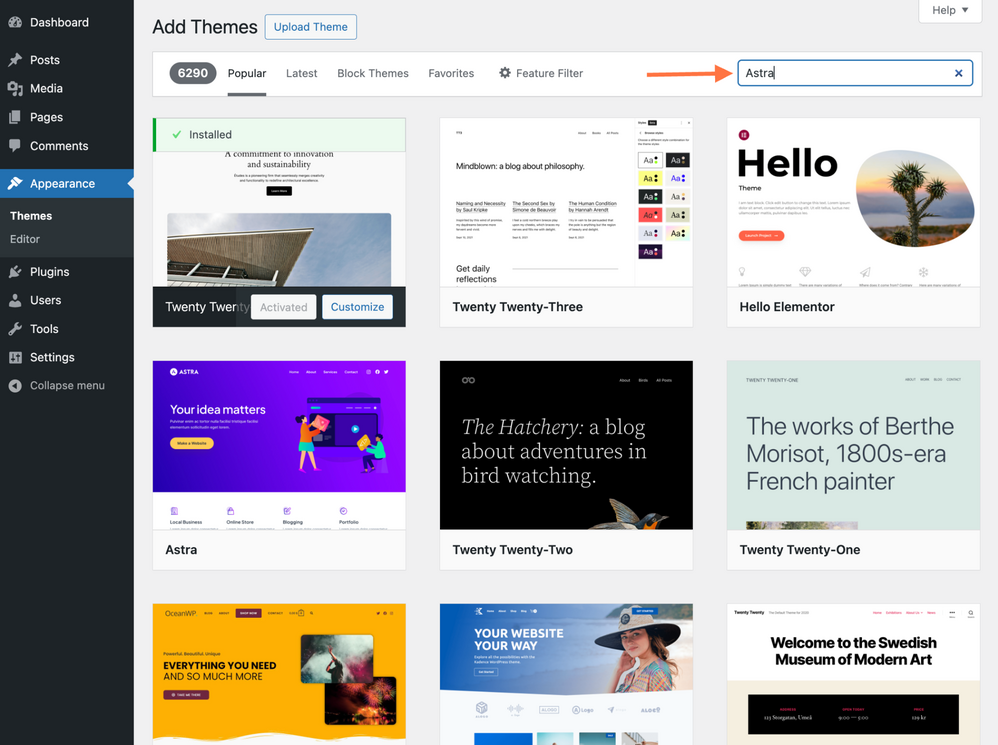
- Search for Astra in the theme directory.
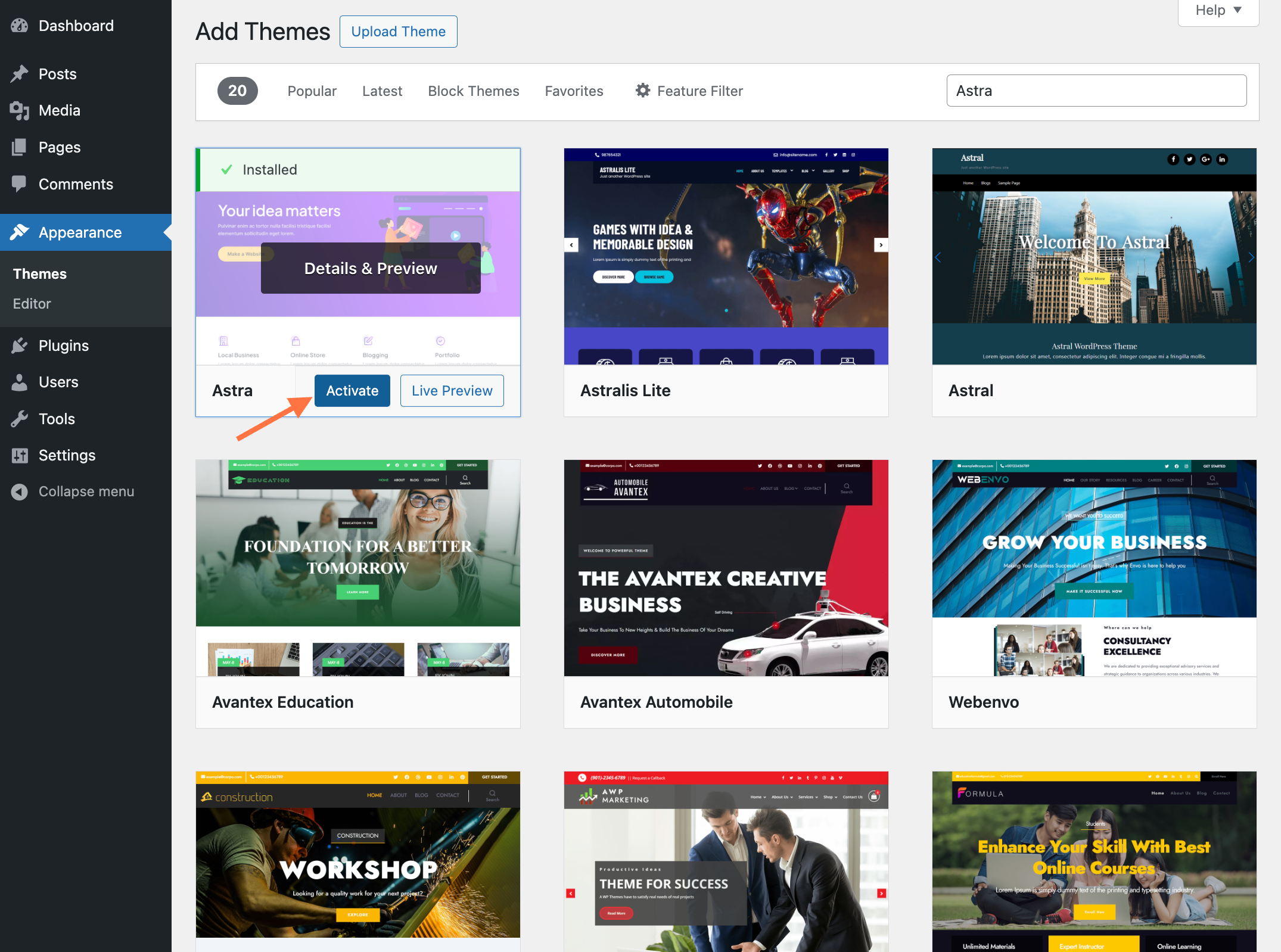
- Click Install, then Activate.
After activation, go to Appearance > Astra Options or Appearance > Customize to start configuration. If you use a starter site, import it from Appearance > Starter Templates to jumpstart design. This dashboard path is the quickest way to add Astra theme in WordPress for most users.
How to add Astra theme in WordPress: Upload ZIP or FTP method
If you have the Astra Pro or a downloaded ZIP, use one of these methods:
-
Upload via dashboard
- Go to Appearance > Themes > Add New > Upload Theme.
- Choose the Astra ZIP file and click Install Now.
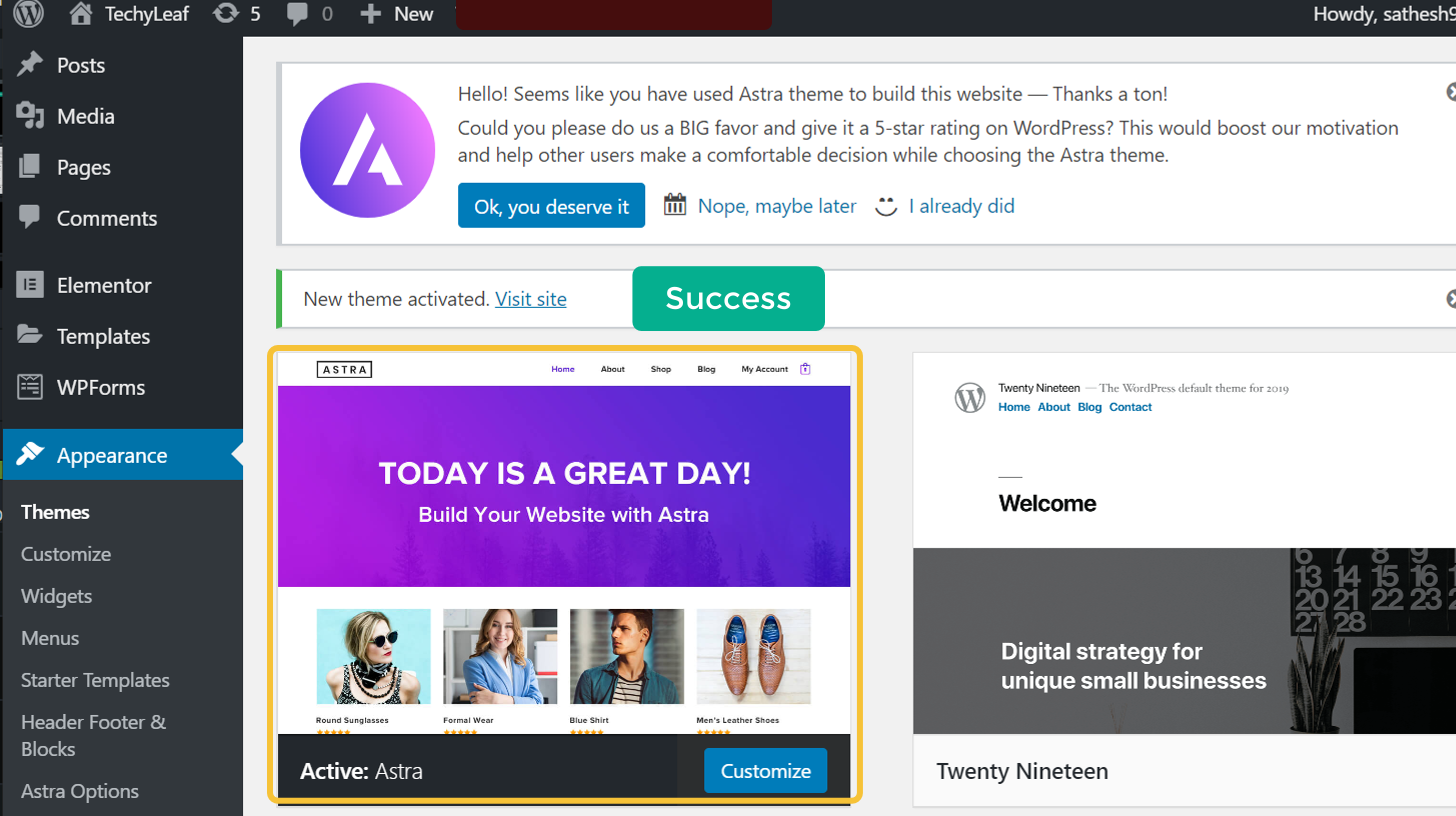
- Activate the theme after upload.
-
Upload via FTP
- Unzip the Astra folder locally.
- Use an FTP client to upload the folder to /wp-content/themes/.
- Go to Appearance > Themes and activate Astra.
Both methods work well for developers and offline installs. I often use FTP when working on staging servers. This manual route shows how to add Astra theme in WordPress when the theme is not in the WP directory.

Initial setup and recommended plugins
After activation, complete these setup tasks:
- Install Astra Starter Templates plugin to import demo sites quickly.
- Install a page builder such as Elementor or Beaver Builder if you want drag-and-drop layouts.
- Install a caching plugin and an image optimizer for better performance.
- Install Astra Pro addon if you need advanced features like header layouts and typography control.
Run the WordPress Site Health check and save permalinks after major changes. From experience, adding the right plugins early keeps the site stable and speeds up the design process. These steps make the process of how to add Astra theme in WordPress smooth and reliable.
Customization and design tips
Customize Astra with these practical tips:
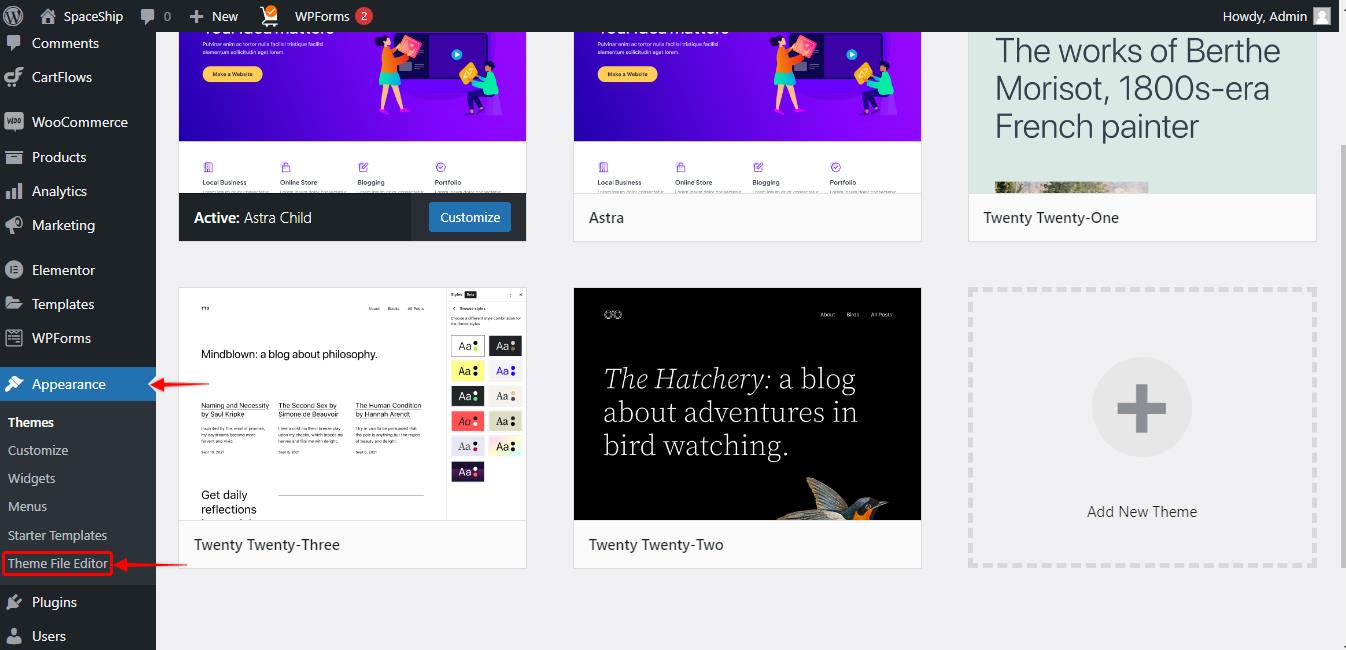
- Use the Customizer (Appearance > Customize) for global settings like colors and typography.
- Set layout widths under Container settings to control page breathing space.
- Configure header and footer via Header Builder for consistent navigation.
- Use global colors and typography to maintain brand consistency.
- Create reusable blocks or templates with your page builder.
I recommend testing style changes on a staging site first. Small, consistent changes avoid design regressions and improve user experience. Following these tips helps you refine how to add Astra theme in WordPress while keeping a clean design system.
Performance, SEO, and accessibility best practices
Astra is optimized for speed, but your setup matters too:
- Use a lightweight page builder and enable only needed modules.
- Serve images in modern formats and lazy-load media.
- Enable caching and a CDN to reduce latency.
- Configure schema markup and title tags for SEO.
- Ensure keyboard navigation and contrast meet accessibility needs.
From my projects, optimizing images and caching gave the largest speed gains. These practices complement Astra and improve how to add Astra theme in WordPress for long-term success.

Common issues and troubleshooting
You may encounter a few common issues. Here are quick fixes:
- White screen after activation: Increase PHP memory limit and disable conflicting plugins.
- Demo import fails: Check file permissions and PHP limits like upload_max_filesize.
- Styling looks off: Clear caches and regenerate CSS from your page builder.
- Slow admin: Disable unused plugins and enable object caching.
When troubleshooting, revert to a default theme on staging and test plugins one by one. These steps address common problems when learning how to add Astra theme in WordPress.
Personal experience and practical lessons
I built multiple client sites with Astra over the years. Lessons I learned include:
- Start with a starter template to avoid design paralysis.
- Keep third-party plugins to a minimum to reduce conflicts.
- Use child themes for custom code to preserve upgrades.
- Test performance metrics after each major change.
One client saved four seconds of load time by switching to Astra and optimizing images. These real examples show how to add Astra theme in WordPress and keep it fast and maintainable.

Frequently Asked Questions of how to add astra theme in wordpress
How do I install Astra from the WordPress dashboard?
Go to Appearance > Themes > Add New, search for Astra, then Install and Activate. This is the most straightforward method for most users.
Can I use Astra with Elementor or other page builders?
Yes. Astra is built to work with Elementor, Beaver Builder, and others, offering deep integration for layout control. You can combine Astra with a page builder for flexible designs.
Do I need Astra Pro to use the theme?
No. Astra has a free version with many features. Astra Pro adds advanced options like header layouts and premium starter templates if you need more control.
How do I import a starter site with Astra?
Install the Starter Templates plugin, choose a template, and import it. The import handles content, menus, and settings to speed up setup.
What if the Astra upload via ZIP fails?
Check PHP settings like upload_max_filesize, ensure correct file permissions, or use FTP to upload the theme folder. Those steps usually resolve upload issues.
Conclusion
Adding Astra to WordPress is a straightforward step that unlocks speed, flexibility, and strong builder support. Follow the dashboard or manual methods, install essential plugins, and apply performance and design best practices. Start small, test on staging, and iterate to build a fast, user-friendly site. Try these steps now, explore starter templates, and leave a comment with your setup experience or questions.