

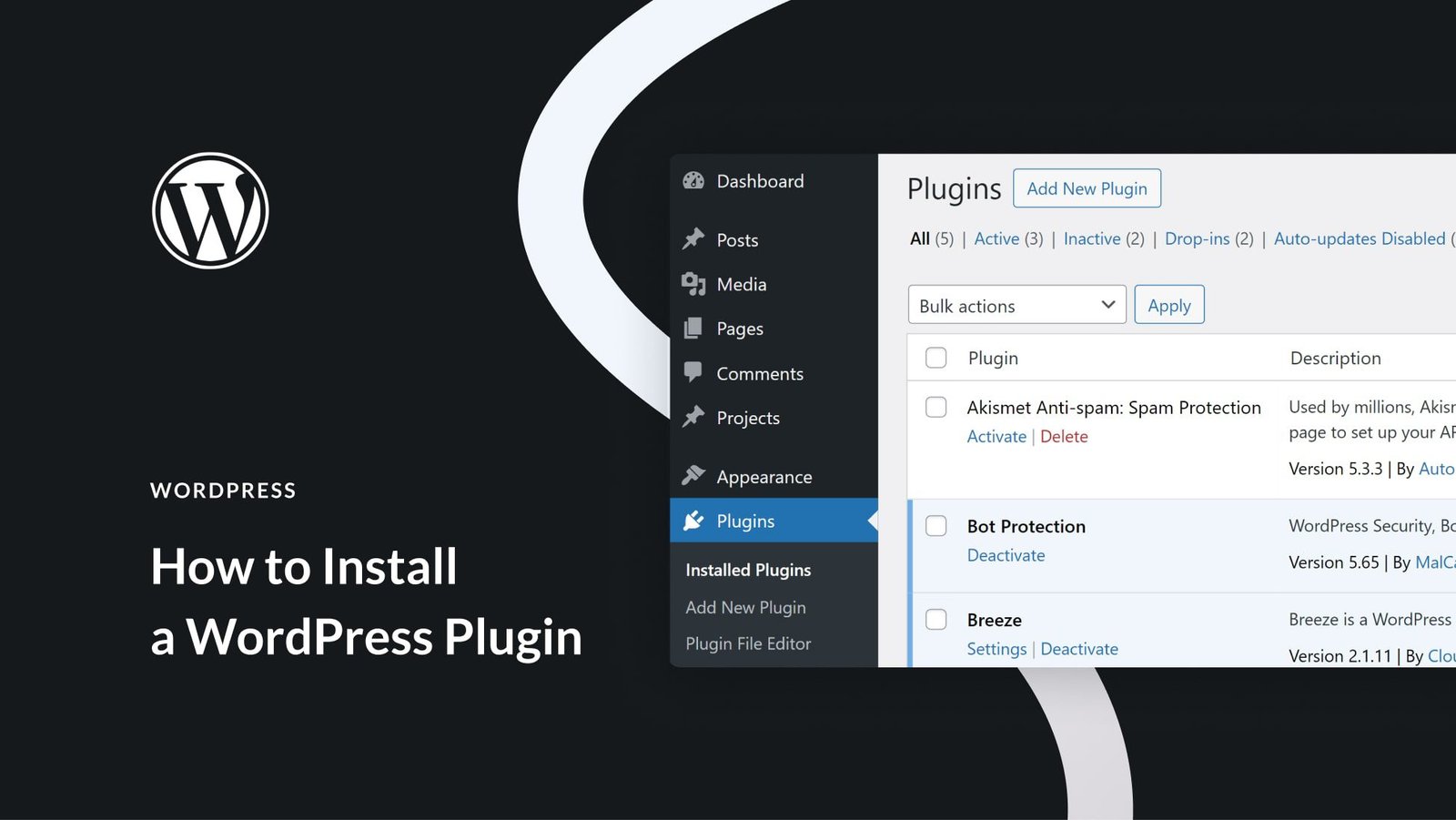
Install a WordPress plugin quickly via the Dashboard, ZIP upload, FTP, or WP‑CLI in minutes.
I have managed dozens of WordPress sites and helped teams learn how to install plugin wordpress safely and effectively. This guide walks you through every method, step-by-step checks, security tips, and real-world lessons from my experience so you can install plugins with confidence and avoid common pitfalls.
Why install plugins in WordPress?
Plugins add features to your site without coding. They let you add contact forms, SEO tools, caching, security, and more. Knowing how to install plugin wordpress saves time and reduces risk when expanding your site.
Prerequisites before you install a plugin wordpress
Before you start, confirm a few basics to avoid errors and downtime.
- Ensure you have an administrator account on the WordPress site.
- Back up your site files and database so you can restore if needed.
- Check theme and PHP version compatibility for the plugin.
- Deactivate caching or maintenance plugins temporarily when installing complex plugins.
Main methods to install plugin wordpress
There are four common methods to install plugins. Choose the one that fits your access level and comfort.
- Install from the WordPress plugin directory via the dashboard.
- Upload a plugin ZIP file through the dashboard.
- Upload files using FTP or SFTP for manual installs.
- Use WP-CLI for command-line installations on servers.
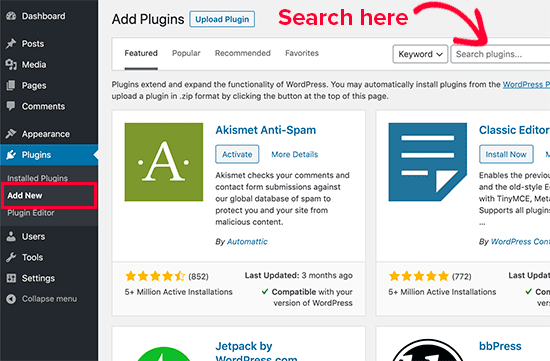
Install from the WordPress dashboard (easy method)
This is the fastest and safest method for plugins listed in the official directory.
- Log in to your WordPress admin dashboard.
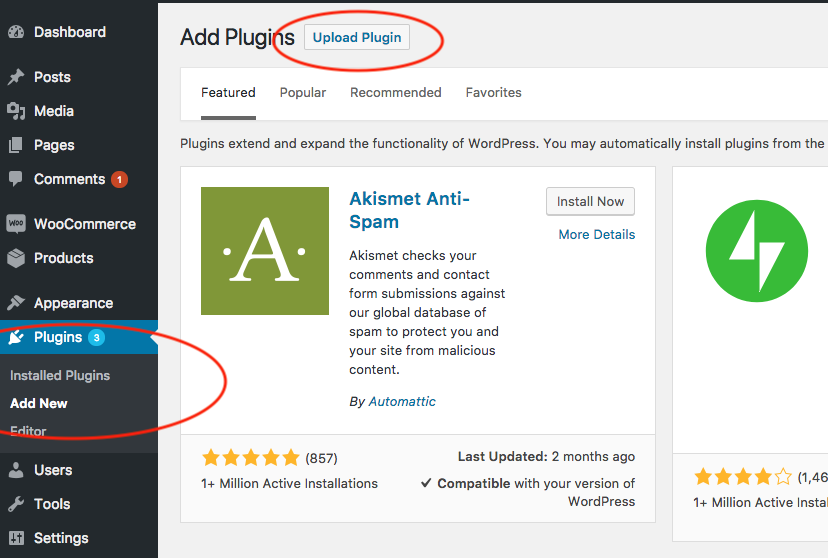
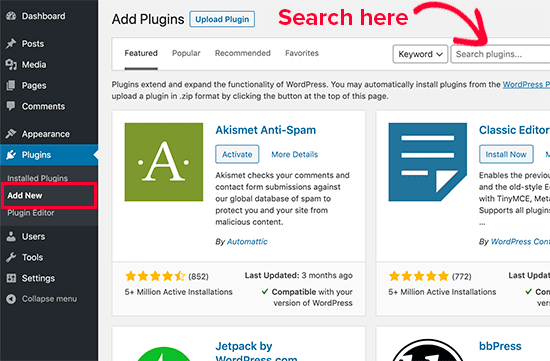
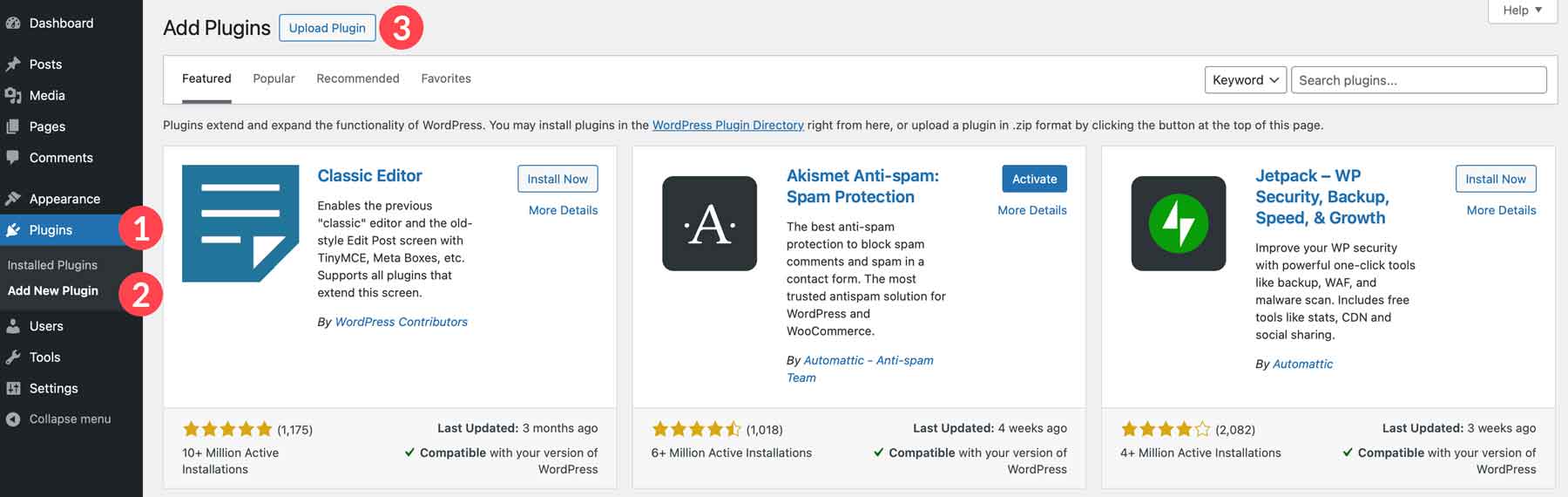
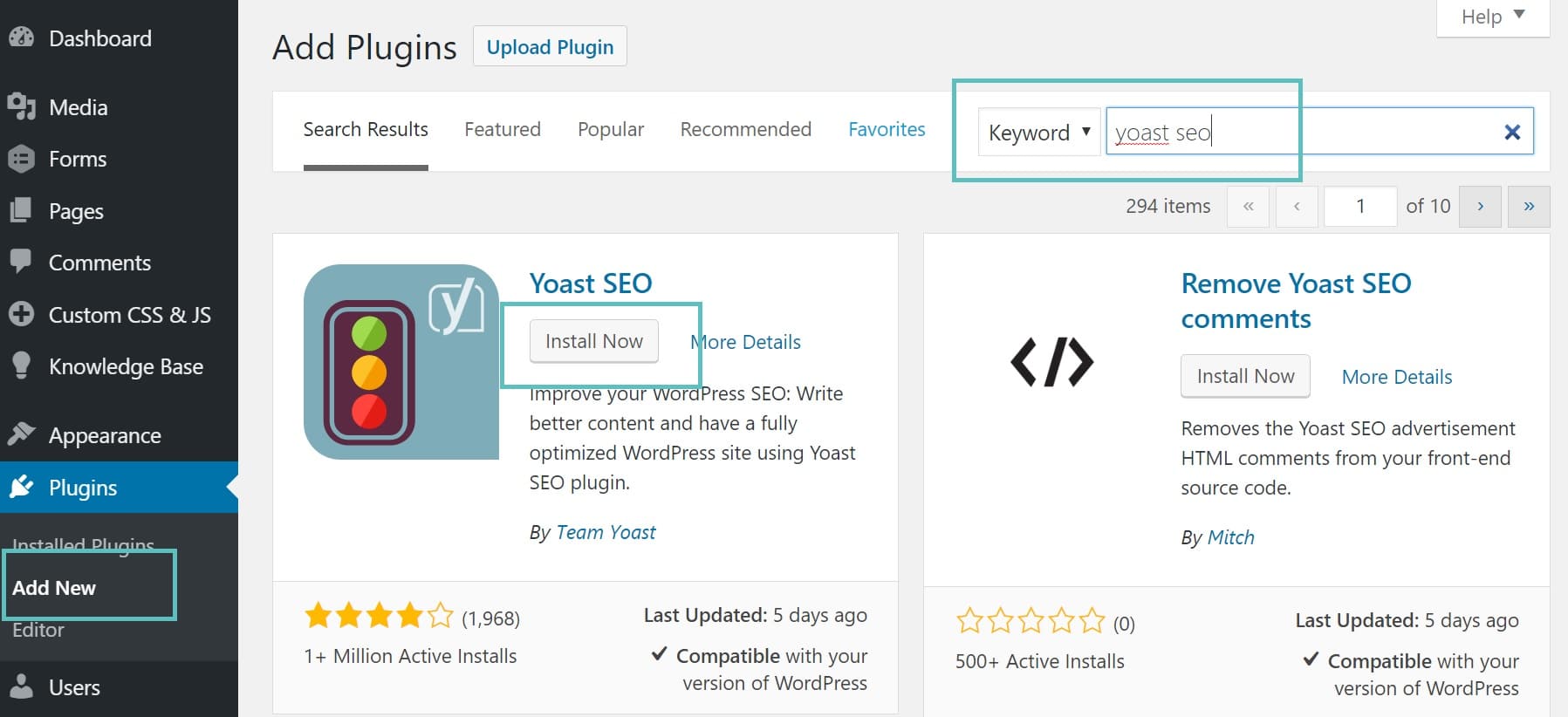
- Go to Plugins > Add New.
- Search for the plugin name or feature.
- Click Install Now on the plugin you want.
- Click Activate after installation completes.
Tips
- Read ratings and recent reviews before installing.
- Check last updated date and tested up to WordPress version.
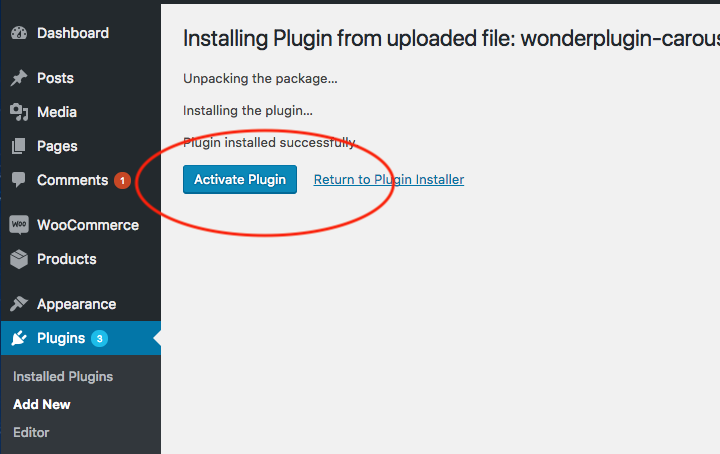
Upload a plugin ZIP file via Dashboard
Use this when you buy a premium plugin or have a custom ZIP file.
- Download the plugin ZIP to your computer.
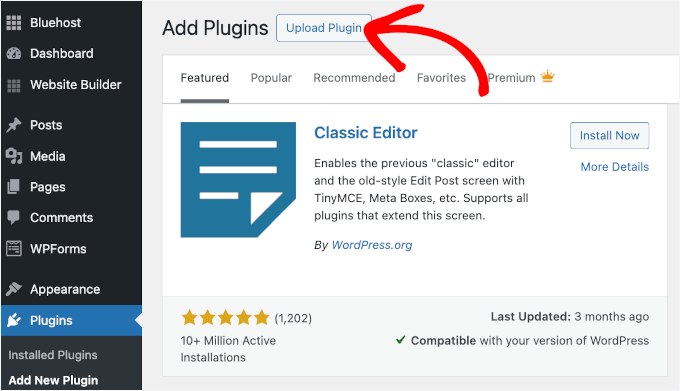
- In WordPress admin, go to Plugins > Add New.
- Click Upload Plugin, then Choose File and select the ZIP.
- Click Install Now and then Activate.
- Enter license key or setup details if required.
Tips
- Keep license keys secure and enter them on official plugin pages.
- Delete old versions first if you are replacing a plugin manually.
Install plugin wordpress via FTP or SFTP
This method works when the dashboard upload fails or for custom installs.
- Unzip the plugin ZIP on your computer.
- Connect to the server using an FTP/SFTP client (FileZilla, Cyberduck).
- Upload the plugin folder to /wp-content/plugins/.
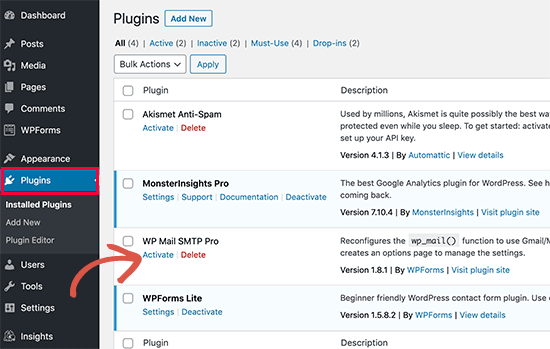
- In WordPress admin, go to Plugins and click Activate on the uploaded plugin.
Tips
- Set correct file permissions (usually 755 for folders, 644 for files).
- Use SFTP when possible to encrypt file transfer.
Install plugin wordpress using WP-CLI
Use WP-CLI for fast installs on servers with command-line access.
- SSH into your server.
- Navigate to your WordPress root directory.
- Run wp plugin install plugin-slug –activate
- For ZIP files, use wp plugin install /path/to/plugin.zip –activate
Tips
- WP-CLI is great for batch installs and scripting.
- Run wp plugin update –all to keep plugins current.

Best practices for plugin management
Good plugin habits keep your site fast and secure.
- Limit the number of plugins to what you truly need.
- Use well-maintained plugins with regular updates.
- Update plugins on a staging site first when possible.
- Remove inactive plugins to reduce attack surface.
- Monitor performance after installing a major plugin.
Troubleshooting common installation issues when you install plugin wordpress
Quick fixes for common problems save time.
- White screen after activation: enable debugging and deactivate the plugin via FTP.
- Upload size limit: increase PHP upload_max_filesize or use FTP.
- Plugin conflicts: deactivate other plugins and reactivate one by one.
- Permission errors: check file and folder permissions and ownership.
- Missing dependencies: read plugin docs for required PHP extensions or themes.
Security and performance considerations for installing plugins
Security and speed are top priorities when you install plugin wordpress.
- Only install plugins from trusted sources and marketplaces.
- Check for recent updates and active maintenance.
- Limit plugin capability scopes and remove unused features.
- Use caching and performance plugins carefully; misconfiguration can slow site.
- Scan plugins with security tools and monitor logs for unusual activity.
Personal experience and practical tips
I once installed a complex plugin on a live site without staging and caused a 503 error. I learned to always test on staging. I now:
- Create a restore point and a staging copy before installing large plugins.
- Read changelogs and support threads for known issues.
- Keep a short list of fallback plugins that are lightweight and reliable.
These steps cut troubleshooting time and keep clients happy.
Frequently Asked Questions of how to install plugin wordpress
How do I install a plugin from the WordPress dashboard?
Go to Plugins > Add New, search for the plugin, click Install Now, and then Activate. It is the easiest option for plugins in the official directory.
Can I install a premium plugin ZIP file?
Yes. Use Plugins > Add New > Upload Plugin, choose the ZIP file, then install and activate. Enter the license key if required afterward.
What if the plugin upload fails due to file size?
Increase the PHP upload_max_filesize or use FTP/SFTP to upload the unzipped plugin folder to /wp-content/plugins/. Then activate from the dashboard.
Is WP-CLI safe for installing plugins?
Yes, WP-CLI is safe and fast when you have SSH access. It is ideal for automated and batch installs but requires caution with commands.
How do I fix a plugin conflict that breaks my site?
Deactivate plugins via the dashboard or rename the plugin folder via FTP to disable it. Then troubleshoot by reactivating plugins one at a time to find the conflict.
Do I need to backup before installing a plugin?
Always backup both files and the database before major plugin installs or updates. Backups let you restore quickly if something goes wrong.
Conclusion
You now know multiple ways to install plugin wordpress and how to choose the right method for your needs. Test changes on staging, keep plugins updated, and follow security practices to protect your site. Take action now: pick one plugin to install on a staging site and follow these steps to practice safely. Leave a comment or subscribe for more WordPress guides and tips.