

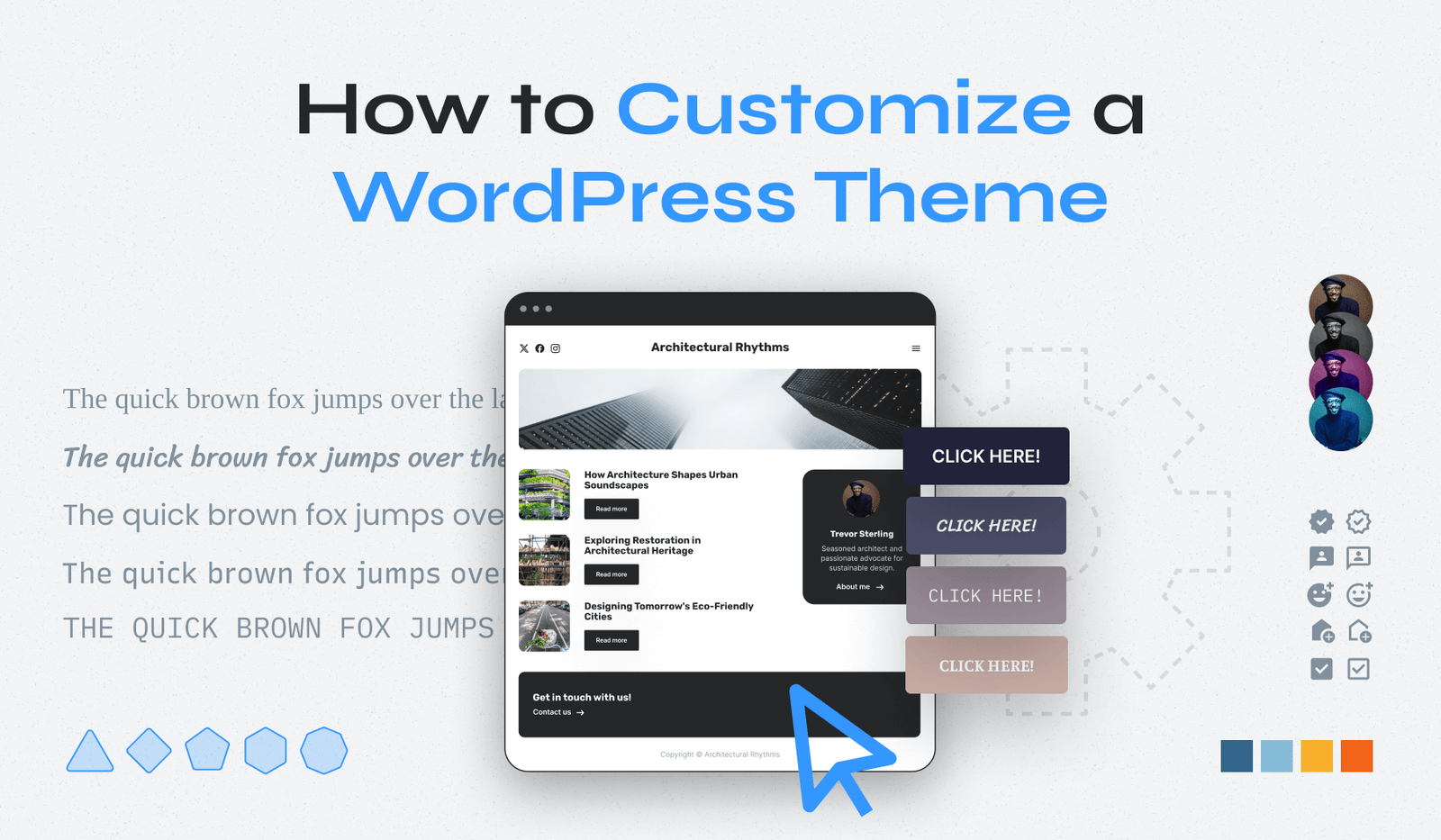
Customize via a child theme, the Customizer, or page builders and custom CSS for safe changes.
As an experienced WordPress developer and site owner, I will walk you through how to customize the WordPress theme so you can shape design, layout, and functionality without breaking your site. This guide covers the full process: planning, tools, step-by-step changes, performance and SEO tips, and real-world lessons from projects where I rebuilt sites, fixed styling conflicts, and avoided common pitfalls. Read on to learn practical, tested ways to customize the WordPress theme and make your site look and perform exactly as you want.
Why customize your WordPress theme?
Customizing gives your site a unique brand and better user experience.
A tailored theme helps convert visitors and supports accessibility and SEO.
Knowing how to customize the WordPress theme lets you control design, speed, and content structure.
Prepare before you customize
Always back up your site first.
Use a staging site to test changes and avoid live-site errors.
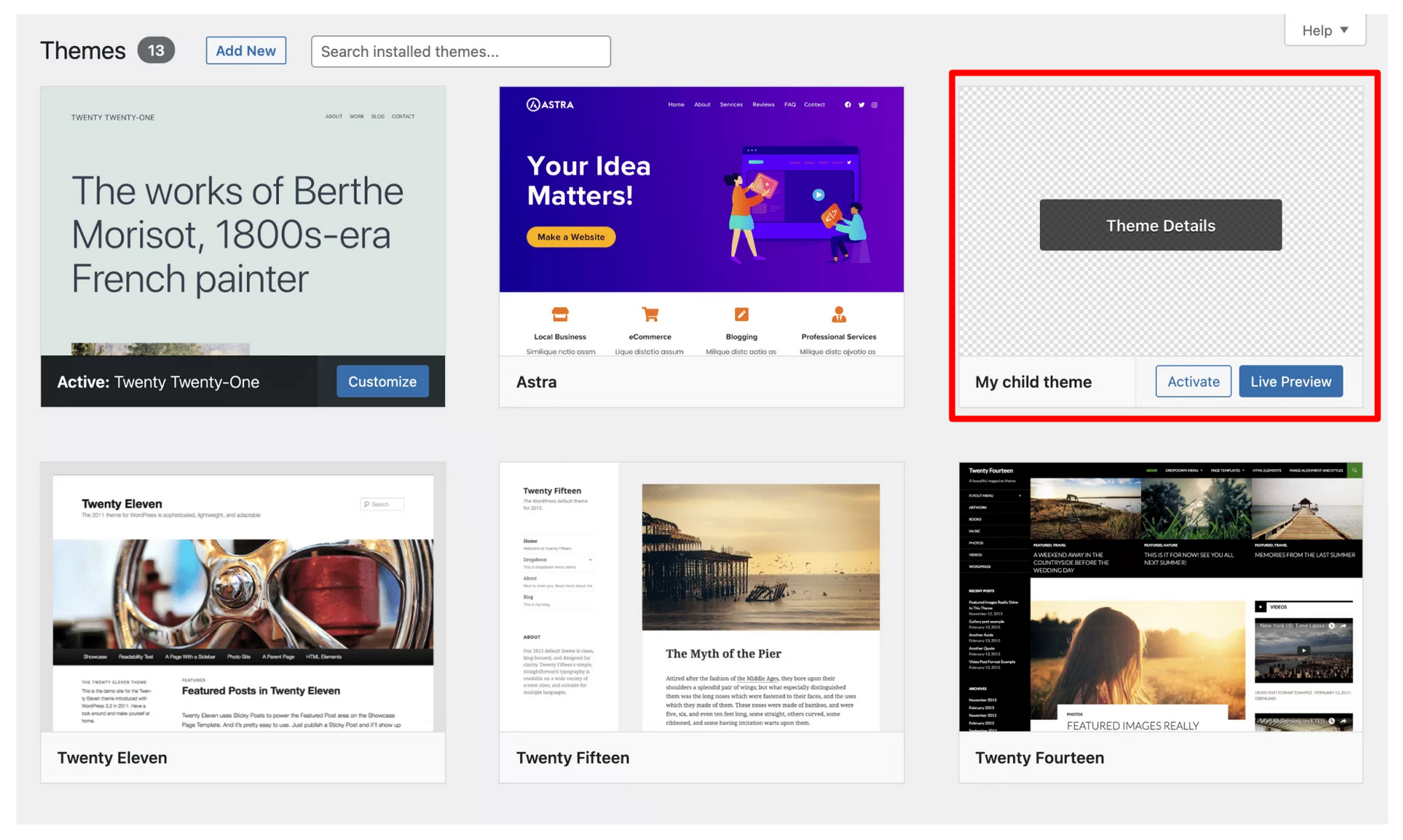
Create a child theme or use block-based theme patterns to preserve updates.
Gather brand assets like fonts, colors, and logos before you begin.
- Back up files and database.
- Set up a staging environment.
- Install developer tools and a code editor.
- Record current theme settings for rollback.

Methods to customize the WordPress theme
Below are safe, common ways to customize the WordPress theme, with pros and cons.
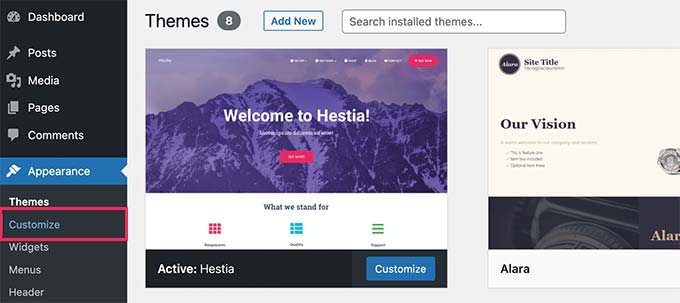
Use the WordPress Customizer
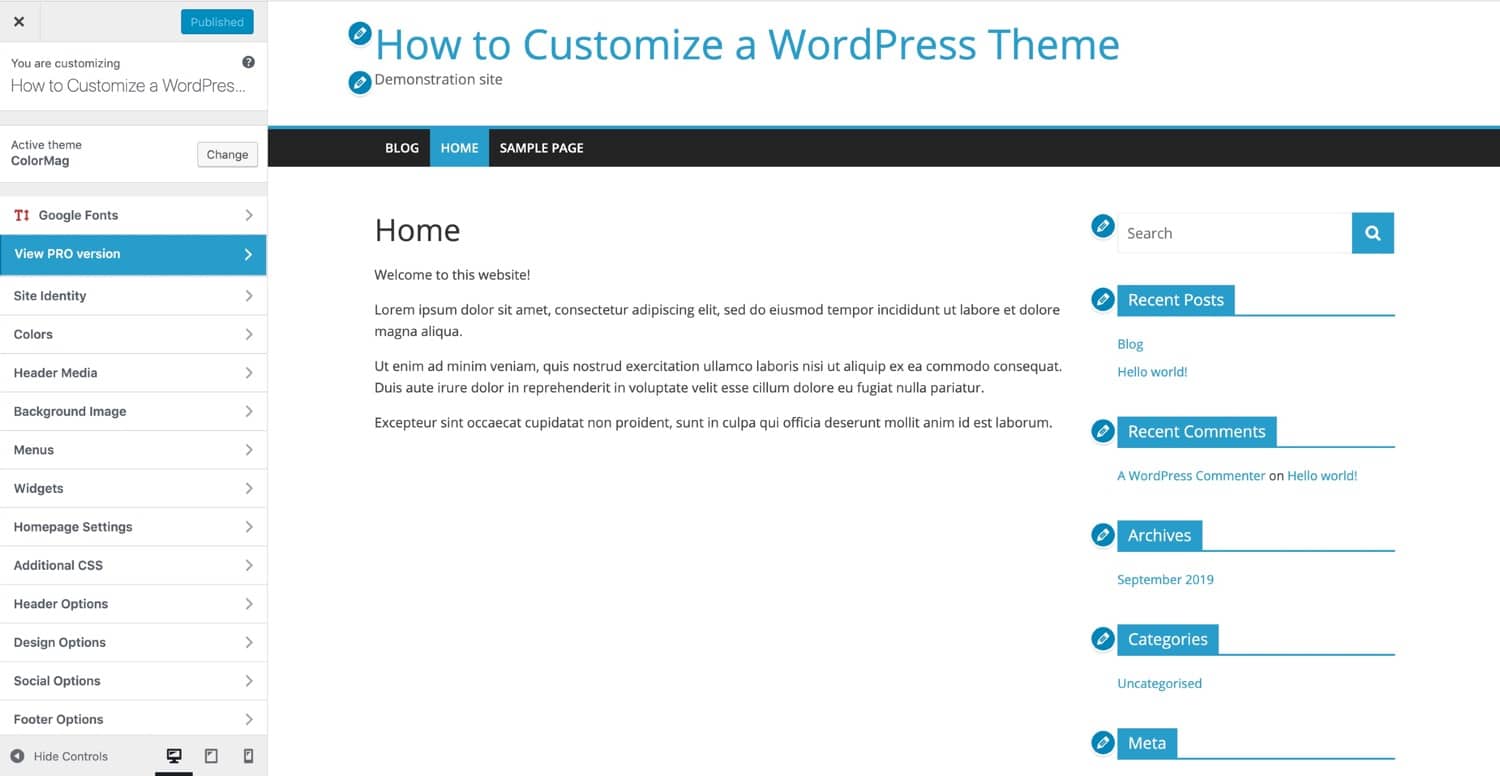
The Customizer lets you change colors, layouts, menus, and widgets in a live preview.
It is ideal for basic visual changes and quick edits.
Theme options and settings
Many premium themes include options panels for typography, header, and footer.
These controls are easy for non-developers and keep changes within the theme framework.
Create a child theme
A child theme preserves your changes when the parent updates.
Use a child theme for template edits, PHP tweaks, and major structural changes.
Use a page builder
Builders like Elementor or the block editor make layout changes visual and fast.
They are perfect when you need custom templates without heavy coding.
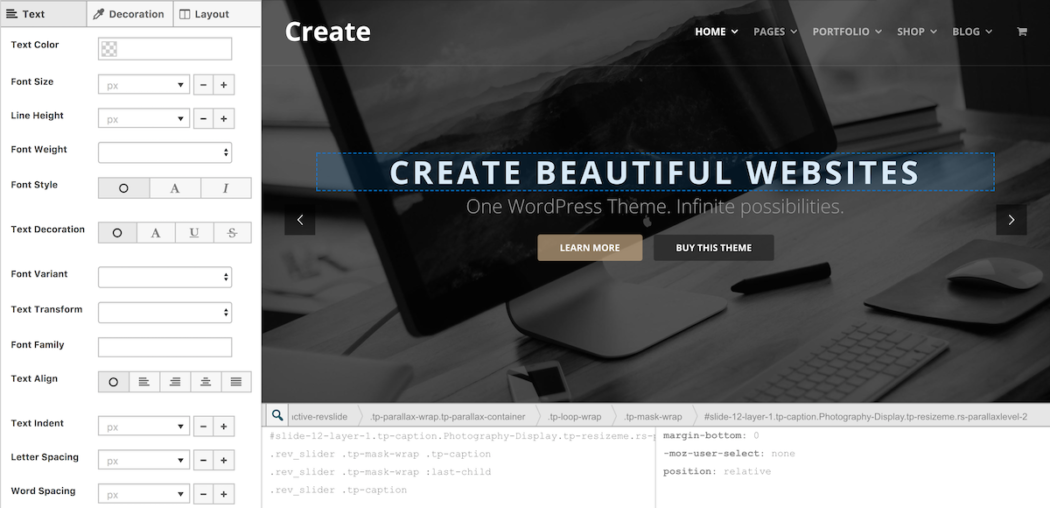
Add custom CSS
Custom CSS is a lightweight way to alter styles.
Use the Customizer’s Additional CSS or a plugin to inject CSS safely.
Full Site Editing (FSE)
FSE and block themes let you edit templates and globally change design in the site editor.
This is the modern WordPress way to customize the WordPress theme without child themes.
Plugins for targeted changes
Use plugins for headers, footers, typography, and performance.
Choose reputable plugins to maintain security and speed.
Step-by-step: How to customize the WordPress theme safely
Follow these steps for a reliable customization process.
- Back up site and database.
- Create a staging environment or local install.
- Choose approach: child theme, FSE, page builder, or custom CSS.
- Install developer tools and enable debugging.
- Build a simple mockup of the desired layout and styles.
- Implement changes incrementally and test after each change.
- Check mobile responsiveness and accessibility for each section.
- Test performance and optimize assets like images and fonts.
- Move changes to production after full QA.
- Monitor logs and user feedback for any regressions.
- Use a version control system for code changes.
- Keep a changelog so you can revert if necessary.
- Document custom templates and CSS for future maintenance.
Best practices for design, performance, and SEO
Follow these guidelines to keep changes effective and resilient.
- Use a child theme or FSE to avoid losing changes on updates.
- Limit plugin use; each plugin can slow the site.
- Optimize images and use modern formats like WebP.
- Minify CSS and JavaScript only when stable.
- Keep CSS selectors specific but concise to avoid conflicts.
- Use semantic HTML and heading hierarchy for SEO.
- Ensure accessible colors and keyboard navigation.
- Test speed with tools and fix slow queries or heavy scripts.
Troubleshooting common issues
When customizing, you may hit common problems. Here’s how to handle them.
- Styling not applying — clear cache and check selector specificity.
- Broken layout after update — revert to child theme backup and inspect templates.
- Plugin conflicts — disable plugins one by one to isolate the issue.
- Slow load times — profile scripts, defer noncritical JS, and optimize images.
- Missing fonts or icons — check font enqueues and CDN availability.
Frequently Asked Questions of how to customize the wordpress theme
What is the safest way to customize my theme?
Using a child theme or the block site editor is safest. Both keep parent theme updates intact and let you revert easily.
Do I need coding skills to customize a WordPress theme?
Basic changes require little code, but deeper customization benefits from HTML, CSS, and PHP knowledge. Page builders reduce coding needs.
How do I change fonts and colors without breaking the site?
Use the Customizer, theme settings, or custom CSS in a child theme. Test changes in staging and on mobile before publishing.
Will customizing affect SEO?
Good customization improves SEO through better structure and speed. Avoid inline scripts that slow the site and maintain semantic HTML.
How do I test customizations safely?
Use a staging site, back up regularly, and test across browsers and devices. Run performance and accessibility checks before going live.
Conclusion
Customizing the WordPress theme empowers you to match brand goals and improve user experience. Use child themes or FSE, test in staging, and follow best practices for speed, accessibility, and SEO. Start with small changes, learn from tests, and iterate to build a fast, accessible, and attractive site. Try one technique today, monitor results, and refine your approach—then share your progress or questions below to keep improving.