

Plugins are modular add-ons that let websites gain new features without changing core code.
As a web professional with years of building and optimizing sites, I’ll walk you through exactly what are plugins on a website, how they work, and why they matter for site owners, developers, and marketers. This article explains technical details in plain language, shares practical examples, and offers tested advice to help you choose, install, and manage plugins safely and efficiently.
What are plugins on a website: core definition
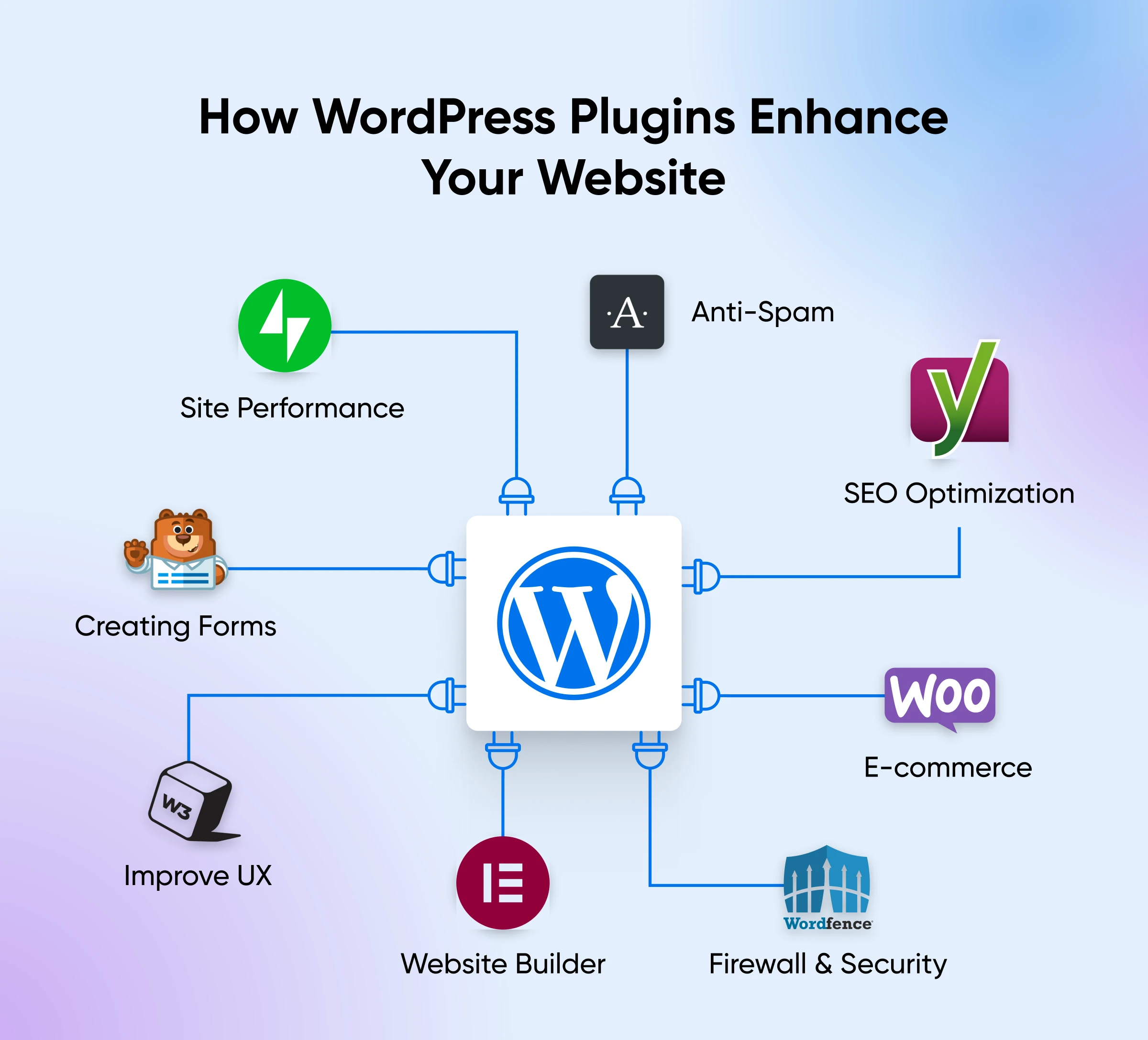
A plugin is a packaged piece of code that adds or changes features on a website without editing the site’s core files. When you ask what are plugins on a website, think of them like apps for a smartphone. They plug into a platform, such as a content management system, to provide search, contact forms, analytics, ecommerce, and more.
Plugins let non-developers add complex features quickly. They often come with settings panels, updates, and documentation. Knowing what are plugins on a website helps you decide whether to install a feature or build it from scratch.
:max_bytes(150000):strip_icc()/003-what-are-plugins-4582189-7ab629edd07a461a8666f733a9128701.jpg)
How plugins work: architecture and integration
A plugin typically hooks into predefined extension points in a website platform. These hooks trigger plugin code at specific events, like when a page loads or when content is saved. Understanding what are plugins on a website requires seeing them as independent modules that communicate via APIs, hooks, filters, or shortcodes.
Integration models:
- Platform hooks enable plugins to run code at lifecycle events.
- APIs let plugins interact with external services and data.
- Templates and shortcodes allow plugins to output HTML within pages.
This modular design keeps the core system stable while enabling feature growth. It also means poorly coded plugins can conflict with others or slow the site.
Common plugin types and real-world use cases
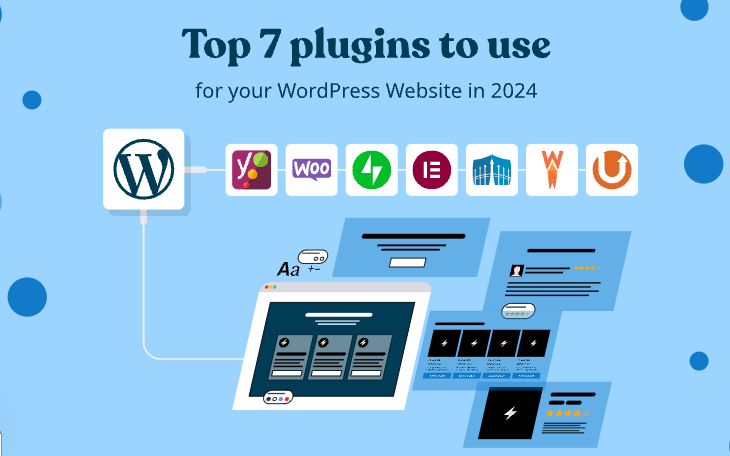
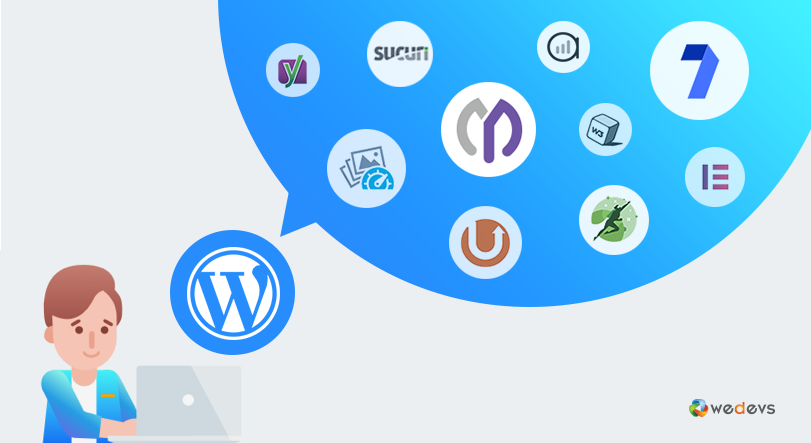
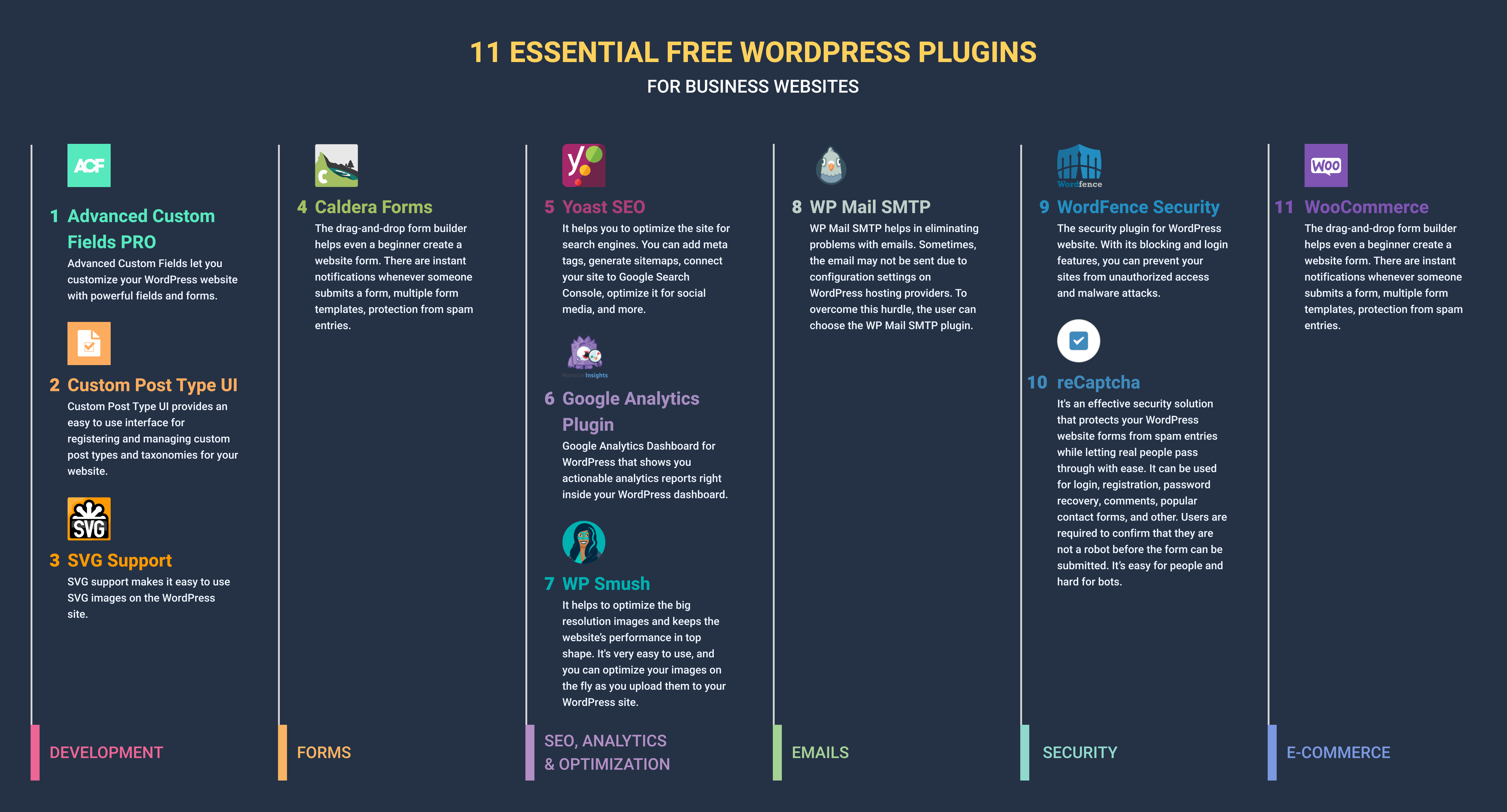
Knowing what are plugins on a website includes recognizing common categories and how they solve real problems. Here are frequent plugin types and their uses:
- SEO and metadata plugins — Improve search visibility and manage structured data.
- Security plugins — Add firewalls, malware scanning, and login protection.
- Performance plugins — Provide caching, image optimization, and lazy loading.
- Ecommerce plugins — Turn a site into an online store with carts and payments.
- Forms and lead capture — Build contact forms, surveys, and lead magnets.
- Analytics and tracking — Integrate traffic, events, and conversion tracking.
- Social and sharing — Add social login, share buttons, and feeds.
I’ve used SEO plugins to fix metadata for clients and performance plugins to reduce load time by 40%. These examples show how practical demand shapes plugin choice.

Benefits and risks of using plugins
Plugins deliver speed, flexibility, and cost savings, but they carry trade-offs. When you evaluate what are plugins on a website, weigh these benefits and risks.
Benefits:
- Fast feature rollout without full development.
- Large ecosystems with many vetted extensions.
- Easy updates and community support for popular plugins.
Risks:
- Security vulnerabilities if not maintained.
- Performance hits from poor code or many active plugins.
- Compatibility issues when multiple plugins overlap.
Being aware of these trade-offs prevents mistakes. I once activated three analytics plugins on a site and caused slowdowns; removing redundant plugins restored speed.
How to choose the right plugin: checklist and criteria
Selecting the right plugin starts with clear requirements. Asking what are plugins on a website informs this checklist.
Selection checklist:
- Define the exact feature and scope you need.
- Check ratings, reviews, and active installations.
- Verify recent updates and compatibility with your platform version.
- Review developer reputation and available support channels.
- Test on a staging site before deploying to production.
Apply this checklist consistently. A disciplined approach saves time and reduces risk of downtime or data loss.
Installing, configuring, and managing plugins: step-by-step
Practical steps help you implement what are plugins on a website safely and sustainably.
Installation steps:
- Back up your site and database before any plugin installs.
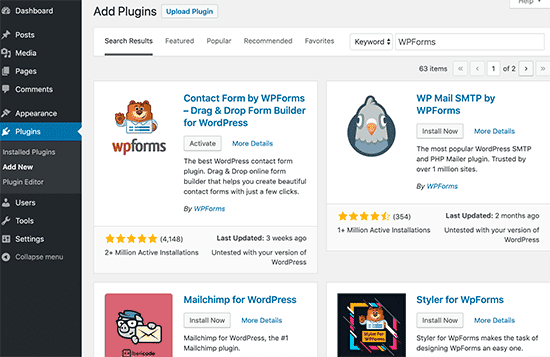
- Install via the platform marketplace or upload a verified ZIP.
- Configure settings using minimal options initially.
- Test functionality on staging, then on production during low traffic.
- Monitor logs and performance after activation.
Ongoing management:
- Schedule regular plugin updates.
- Remove unused or deprecated plugins.
- Keep a change log for plugin activations and major updates.
Following these steps reduces surprises and keeps the site stable.
Performance and security best practices for plugins
When considering what are plugins on a website, performance and security should guide every choice. Adopt these practical practices.
Performance tips:
- Use lightweight plugins that do one job well.
- Limit the number of active plugins and disable unused ones.
- Employ caching and selective asset loading to minimize requests.
Security tips:
- Use official marketplaces and trusted vendors.
- Run vulnerability scans and monitor for unusual activity.
- Use principle of least privilege for plugin accounts and API keys.
I recommend auditing plugins quarterly. Regular audits caught an outdated plugin on a client site before an exploit occurred.
:max_bytes(150000):strip_icc()/002-what-are-plugins-4582189-4b54dd97ac1741c8a5edf6b20b2c7486.jpg)
Personal experience, mistakes to avoid, and practical tips
From years of building sites, here are candid lessons about what are plugins on a website.
What I learned:
- Less is often more; too many plugins hurt speed.
- Test on staging; never enable major plugins on live sites first.
- Prefer well-supported plugins with active communities.
Common mistakes:
- Installing plugins for every new task instead of grouping needs.
- Ignoring update notes and compatibility warnings.
- Not backing up before major changes.
Practical tips:
- Create a plugin inventory spreadsheet with version and purpose.
- Schedule maintenance windows for updates.
- Use code snippets or custom plugins for small, unique tweaks.
These habits make plugin use predictable and secure.
Migrating and troubleshooting plugins
Handling migration and troubleshooting is part of understanding what are plugins on a website. Be prepared with processes.
Migration checklist:
- List active plugins and their roles.
- Check plugin compatibility with the target environment.
- Export plugin data or settings when available.
- Test after migration for feature parity.
Troubleshooting steps:
- Disable all plugins and re-enable one-by-one to find conflicts.
- Review error logs and browser console messages.
- Roll back updates when necessary using backups or snapshots.
A methodical approach resolves most plugin-related issues quickly.
Frequently Asked Questions of what are plugins on a website
What are plugins on a website and why use them?
Plugins are modular code packages that add features to a site without changing core files. Use them to add functionality quickly, such as SEO, forms, or ecommerce.
Can plugins slow down my website?
Yes. Poorly coded or excessive plugins can increase load time and server requests. Choose lightweight plugins and test performance after installation.
Are plugins secure to use on any website?
Plugins can be secure if they are maintained, updated, and come from reputable sources. Always follow best security practices and keep backups.
How many plugins should a website have?
There is no fixed number; focus on necessity and quality. Aim for as few plugins as possible while meeting your functional needs.
What if two plugins conflict with each other?
Disable plugins and reactivate them one at a time to find the conflict. Check for updates, or use alternative plugins that offer similar features.
Should I build a feature instead of using a plugin?
If a feature is unique, performance-critical, or long-term strategic, custom development may be better. For common needs, plugins save time and cost.
Conclusion
Plugins let you expand site features quickly while keeping the core platform intact. Understanding what are plugins on a website helps you choose wisely, manage risk, and keep performance high. Start by defining needs, testing on staging, and adopting regular audits to maintain security and speed. Take action: review your current plugins, remove what you don’t need, and schedule a maintenance audit this month to improve reliability and user experience.